
Claude Web & Desktop
Both the Claude.ai website and the Claude desktop app use the same Connectors settings to add MCP servers — no config files needed.
Prerequisites
Section titled “Prerequisites”- A LiveRecover account with at least one brand
- A Claude account
Add the LiveRecover connector
Section titled “Add the LiveRecover connector”- Open Claude.ai in your browser — or open the Claude desktop app
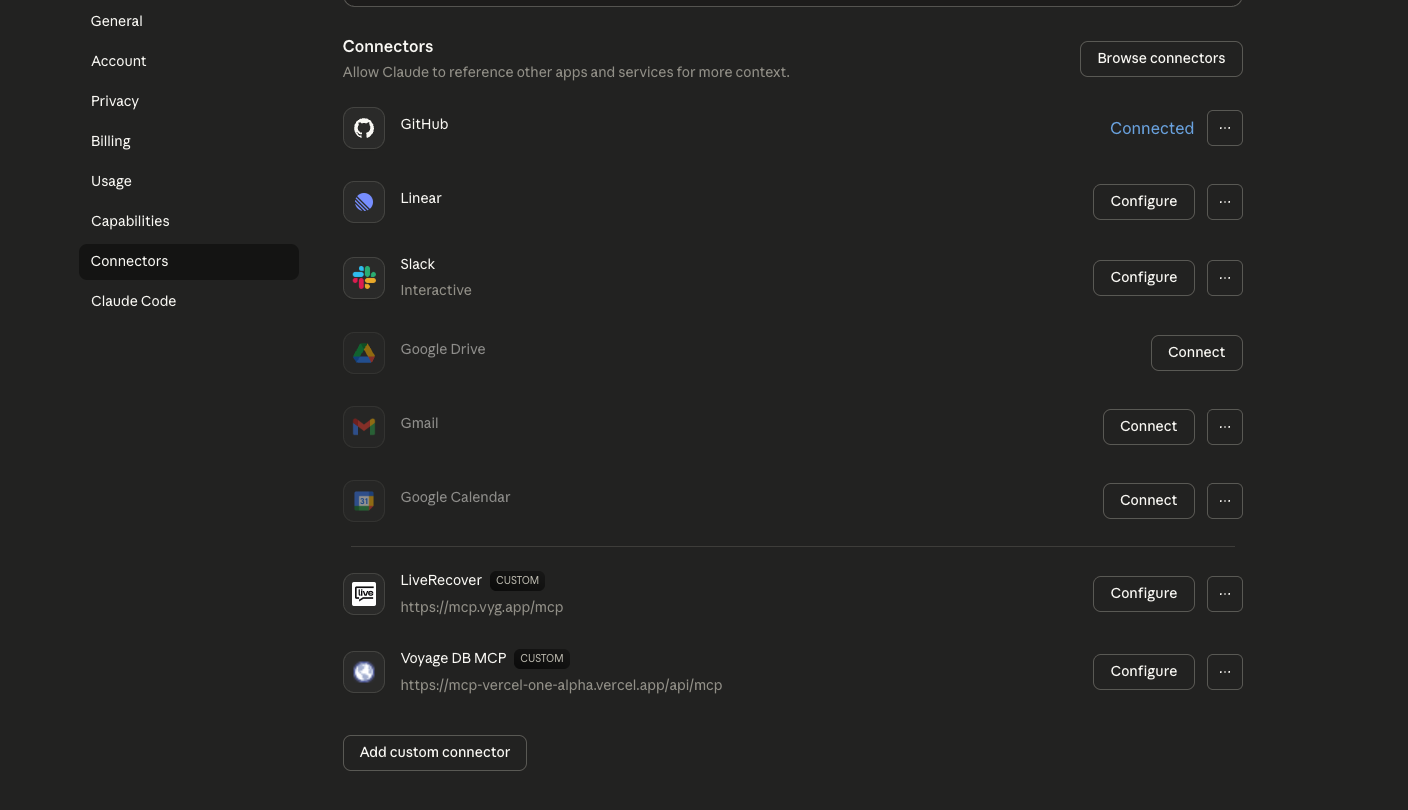
- Go to Settings → Connectors
- Click Add custom connector
- Enter the following details:
- Name:
LiveRecover MCP - URL:
https://mcp.vyg.app/mcp
- Name:
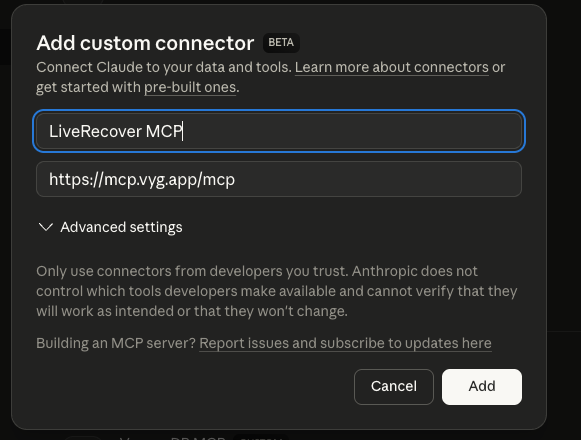
- Click Add
LiveRecover will now appear in your Connectors list as a connected integration.
Authenticate
Section titled “Authenticate”The first time Claude uses a LiveRecover tool:
- A browser window opens to the LiveRecover login page
- Log in with your LiveRecover credentials
- Select which brand you want to connect
- Approve the connection
Once approved, Claude can access your LiveRecover data. Tokens refresh automatically.
Try it out
Section titled “Try it out”After connecting, try asking Claude:
What are my dashboard stats for the last 30 days?What are the top customer blockers right now?Search for conversations about return policiesWhat discount does my abandoned cart flow offer?